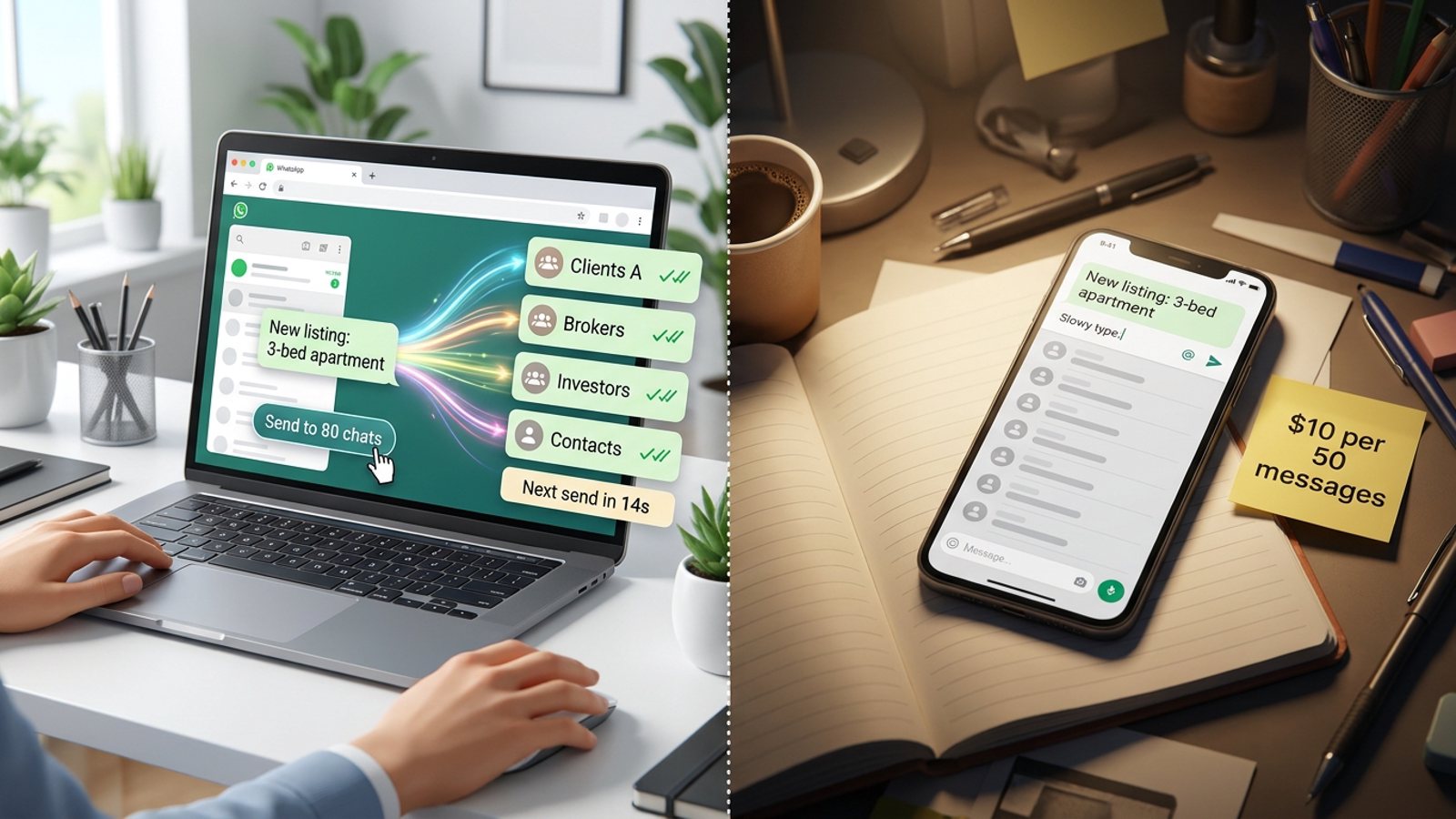

How do quick replies in WhatsApp Business save time?

WhatsApp Business quick replies are saved messages you open by typing "/" in a chat, so you stop retyping the same answers about hours, prices or bookings. You save a shortcut and a message once, then insert it in seconds and edit it for the person. Below: setup steps and eight ready-to-use templates.
Key takeaways
- Quick replies are shortcuts for frequently sent messages, per WhatsApp's Business app features page (last modified 6 October 2026).
- You create them under Business tools, then type "/" in any chat to pick one.
- Edit each reply before sending so it reads as personal, not pasted (our suggestion).
- Eight templates below are our suggestion; copy them and fill in your own details.
- Quick replies speed up one-to-one chats. Sharing one post into many groups is a different job.
What are WhatsApp Business quick replies?
Quick replies are saved messages for questions you get again and again. WhatsApp describes them as shortcuts for frequently sent messages. A 2019 WhatsApp Blog post (old, so menus may differ) describes them as saved answers to common questions that you open on a computer with the slash key.
Think of it as a small library of your best answers. You write each one once, with care, and reuse it whenever the question comes in.
They live in the WhatsApp Business app. They sit next to other tools on the same features page, such as labels, a greeting message for new customers and an away message that replies outside business hours.
How do I set up quick replies in WhatsApp Business?
Open the menu, go to Business tools, then Quick replies. According to a Rasayel help guide (last updated December 2024; this is a vendor guide, not WhatsApp's own), the steps are:
- Tap the menu icon, then Business tools, then Quick replies.
- Tap the plus sign (+).
- Write a shortcut and your message, or select media.
- Tap Save.
At the time of writing, menus may differ by device and version, so look for the same wording in your own app.
Our suggestion for shortcuts: keep them short and memorable, such as "hours", "prices" or "book". You will type them under pressure, so avoid clever names.
Can I attach images to a quick reply?
The Rasayel guide says you can select media when creating a quick reply. The same guide says media files are not supported in quick replies on WhatsApp Web or Desktop. If you work mostly from a computer, test one with an image before you rely on it.
How do I use a quick reply in a chat?
Type "/" in the message box and pick the reply. Per the same guide:
- Open a chat.
- Tap the message box and type "/". Your quick replies appear, including default ones.
- Select the one you want. It fills the text field.
- Edit it if needed, then tap Send.
A WABetaInfo report from December 2021 (old) describes a beta that added another way to open quick replies from the attach menu on Android and iOS. Menus change between versions, so check your own app; the "/" route is the one described in the sources above.
Which questions should become quick replies?
Start with the five questions you answered most this week. Our suggestion: scroll back through your chats and note the repeats. Those are your first quick replies.
Good candidates are opening hours, a link to your prices, how to book, where you are, how to pay, thanks after a purchase, a follow-up nudge and an out-of-office note. The next section gives you all eight.
What are 8 ready-to-use quick reply templates?
These templates are our suggestion, not WhatsApp's wording. Replace the details in curly brackets with your own, then paste each into a new quick reply. Keep the tone you would use face to face.
1. Opening hours
Shortcut: hours
Hi {name}, thanks for getting in touch! We're open {days} from {opening time} to {closing time}. Is there something I can help you with today?
2. Prices list link
Shortcut: prices
Hi {name}, here is our current price list: {link to your catalog or price page}. Tell me what you have in mind and I'll point you to the best fit.
3. Booking
Shortcut: book
Happy to get you booked in, {name}. Which day and time suit you best? I'll check availability and confirm here in the chat.
4. Location
Shortcut: where
We're at {street address, city}. Here is the map pin: {map link}. Parking tip: {short parking note}. See you soon!
5. Payment details request (handled safely)
Shortcut: pay
Thanks, {name}! To pay, please use our official payment link: {payment link}. For your safety, please don't send card numbers, PINs or one-time codes in this chat. We will never ask for them. If anything looks different from this message, tell me before paying.
Our suggestion: never ask a customer to type card details into a chat, and send payment instructions only through a link or method you control. Payment rules and consumer rules vary by country; this is not legal advice.
6. Thank-you
Shortcut: thanks
Thank you, {name}! It was a pleasure helping you. If anything isn't right, just reply here and I'll sort it out.
7. Follow-up
Shortcut: followup
Hi {name}, just checking in about {topic}. Would you like me to hold a spot for you, or answer any questions first? No pressure either way.
Send follow-ups only to people who have written to you or agreed to hear from you. Marketing consent and local law differ by country; this is not legal advice.
8. Out-of-office
Shortcut: away
Hi {name}, thanks for your message. I'm away until {date} and will reply on {first working day}. If it's urgent, please contact {backup name or number}.
How do I keep quick replies from sounding robotic?
Edit the message before you press send. Our suggestion is a three-second check each time:
- Swap in the person's name and one detail from their message.
- Delete any line that does not answer their question.
- Read the reply as if you were the customer.
Also refresh your replies when your prices, hours or address change. Our suggestion: if a reply is out of date, type a fresh answer instead of sending it in a hurry.
Quick replies, greeting messages or away messages?
They do different jobs. Quick replies are manual: you choose and send them. WhatsApp's features page lists the greeting message (welcomes new customers) and the away message (replies automatically outside business hours) as separate tools. Use quick replies when a person is waiting for an answer, and automatic messages when you cannot answer right now.
If you want to sort the people behind those chats, labels help organise and filter conversations. See How do labels work in the WhatsApp Business app?.
What other options exist for repeated messages?
The table compares the options we looked at for repeated messages. Nothing here is a guaranteed result.
| Option | Best for | Key features | Price / free option | Watch-outs |
|---|---|---|---|---|
| Quick replies (WhatsApp Business app) | Answering repeated questions one to one | Shortcut plus saved message; "/" to open | See the app store listing | Media is not supported on Web or Desktop, per Rasayel's 2024 guide |
| Greeting and away messages (Business app) | Welcoming new customers; replying outside hours | Automatic replies, per WhatsApp's features page | Same app | Automatic, so less personal |
| Typing from your own notes | Occasional questions | Full control | Free | Slower and easy to make typos |
| Business Platform templates | Businesses messaging customers through a partner setup | Meta says templates must be approved before sending | See Meta's pricing pages | Needs a partner setup; messages outside a customer service window must be templates, per Meta |
| FivePlus | Sharing one post to many groups you already belong to | Presets, text, images, video, documents | Free 24-hour trial; see current plans | Computer and Chrome only; not an official WhatsApp product |
Of the options we compared, quick replies are the direct fit for this question, so we do not rank FivePlus first here. Its job is different.
Where does FivePlus fit?
FivePlus is made by the team behind this blog. It is a Chrome extension for WhatsApp Web that shares one message or file to more than 5 chats at once, using saved presets of groups and contacts. It works with regular WhatsApp and WhatsApp Business accounts through WhatsApp Web.
Here is the simple split. Quick replies speed up one-to-one conversations. FivePlus speeds up sharing the same post into many groups you already belong to, instead of forwarding five chats at a time. If you also post updates to groups, see How do I save a list of WhatsApp groups and reuse it every time?.
Honest limits: FivePlus works only on WhatsApp Web in Chrome on a computer, not in the phone app. It automates clicks, so WhatsApp Web changes can temporarily break it until it is updated. WhatsApp's Terms for the Business App prohibit spam and unsolicited communications, and WhatsApp may limit, throttle, suspend or terminate accounts for breaches. No tool can guarantee an account won't be restricted. Send only to groups and contacts who want your messages, and follow each group's rules.
FivePlus is not affiliated with or endorsed by WhatsApp or Meta.
Sources
- WhatsApp Business app features (last modified 2026-10-06) — https://whatsappbusiness.com/products/business-app-features/
- WhatsApp Blog, "Celebrating one year of WhatsApp Business" (2019-01-24, old) — https://blog.whatsapp.com/celebrating-one-year-of-whats-app-business-with-new-web-and-desktop-features
- Rasayel, Quick replies (vendor guide, last updated 2024-12-20) — https://learn.rasayel.io/en/books/whatsapp/whatsapp-business-app/quick-replies
- WABetaInfo, new shortcut for quick replies (2021-12-19, old) — https://wabetainfo.com/whatsapp-is-releasing-a-new-shortcut-for-quick-replies/
- WhatsApp Terms for the Business App (effective 2026-09-23) — https://www.whatsapp.com/legal/WhatsApp-Terms-for-WhatsApp-Business-App
- Meta, Template fundamentals (read 2026-11-05) — https://developers.facebook.com/documentation/business-messaging/whatsapp/templates/overview
- FivePlus on the Chrome Web Store — https://chromewebstore.google.com/detail/cokbcpgkbjofdjlmdlnmjnmflajnlghp
Frequently asked questions
The "/" shortcut is described for computers in WhatsApp's 2019 blog post (old). Rasayel's December 2024 guide says media in quick replies is not supported on Web or Desktop. Menus may differ now.
No. Quick replies are your own saved messages in the Business app. Business Platform templates are a separate system where Meta says messages must be approved before sending.
A reply you choose and send to someone who wrote to you is a normal conversation. Sending the same message to people who did not ask for it can fall under WhatsApp's spam rules. Rules vary by country; this is not legal advice.
Quick replies are for one-to-one chats. To share one post into many groups you already belong to from a computer, FivePlus is one option, with limits: Chrome and WhatsApp Web only, and no tool can guarantee an account won't be restricted.